
Last summer, Civic Square announced the Dream Fund - an open call for proposals that make steps towards a collective future with the capacity to dream.
The Dream Fund exists to unlock and resource the bold, creative, regenerative dreams that are inside us and move them into the everyday consciousness of many.
Our proposal
We asked ourselves, how can we provide building blocks to play with and create a vision of our collective futures?
Our proposal was to create a collective Dream Builder.
What is the Dream Builder?
The Dream Builder is an online tool to create your own digital dream board, from a curated collection of open image libraries.
What is a dream board?
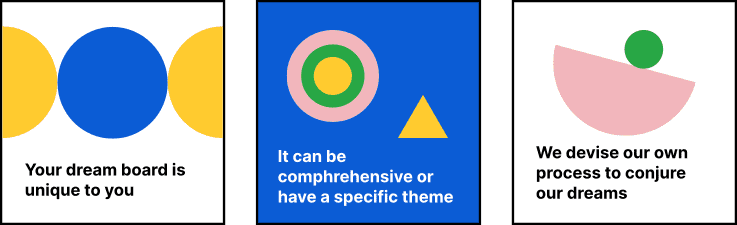
A dream board is a collage of images and text that represent your vision of the future.
How does it work?
Exploring Images
Usually, physical dream boards are made from collages of magazine or newspaper clippings, or other printed materials.
Perusing these images libraries is a joyful practice, the only difficult part of curating them will be whittling down the choices. Variety is key, looking beyond my own dream landscape to provide stimuli that speaks to the hearts of many. People interpret things in different ways and, much like the way we assign meaning to the symbols of our sleeping dreams, we each create our own symbol-icon-meaning-dictionary.
We'll be using the Unsplash API to gather high-quality images from the huge collection on Unsplash.
The complex part of this process is building an interface for users to browse these image libraries - preferably without having to leave the same page. When the user resonates with an image, they'll want to save it into an image bank or media library to use later on for their digital collage. The experience should be intuitive and familiar, with little need for explanation.
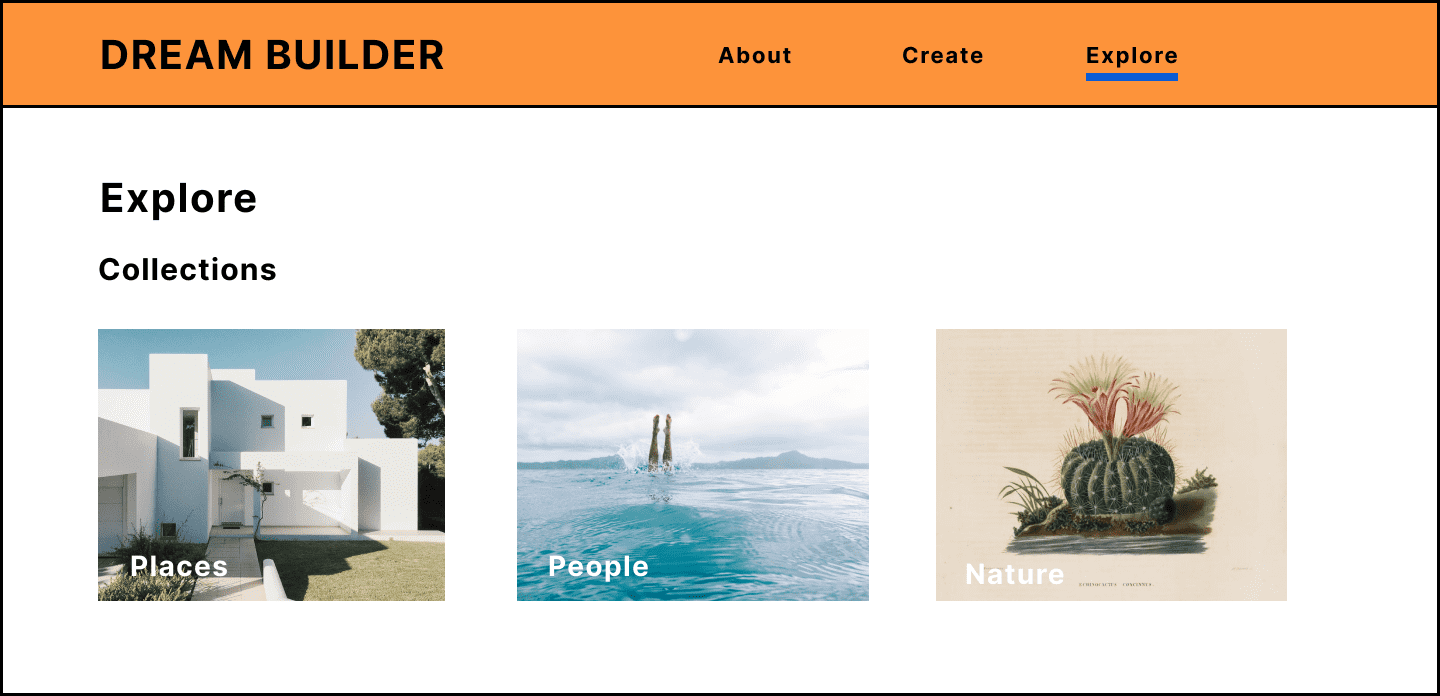
The images will be curated into categories called collections, examples can be nature, people, places, things. Each collection is represented by one image and a title - just like photo albums. Clicking on this image opens up the whole collection. I played around with a few different ways of doing this. Initially, I thought of designing a small bucket icon (to represent your media library) at the top of the page and users can drag and drop the images they like into it. On second thoughts, this could be cumbersome, especially if you are dragging an image from the bottom of the page up to the top. It's time consuming, repetitive and often these mechanisms don't work smoothly with the page-scrolling.
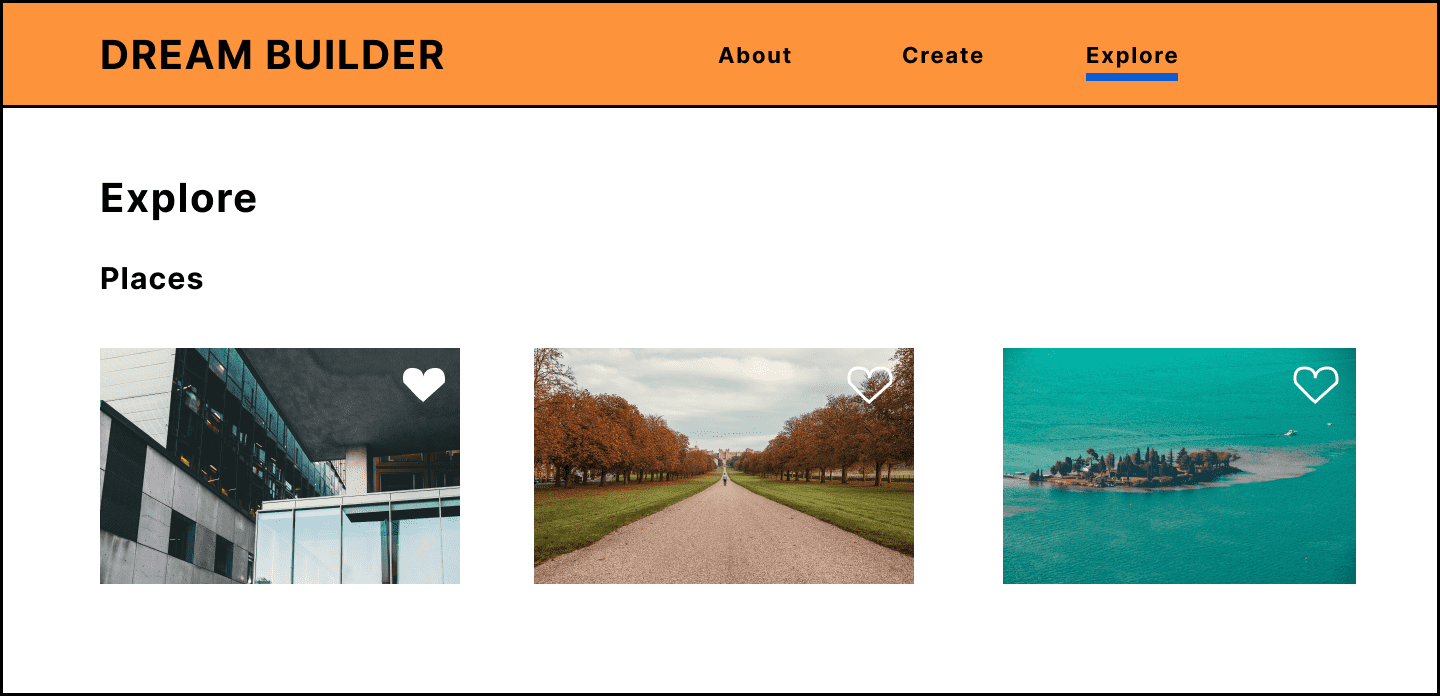
Instead, we are mostly all familiar with the little heart icon we use to 'like' on social media, or 'favourite' images in our phone galleries, or add items to a wishlist when shopping online. It's recognisable and intuitive. All it takes is one click or a double tap on mobile. The images are saved to a media library that you can access at the next step - the canvas for creating your dream board.
Image Rights
One of the most important things to consider for this project is the usage rights of each image. Typically, magazine images are licensed by the image author - they are given rights to use the image for a set amount of time, either by the photographer, illustrator or artist. It can get complicated. For a personal collage, there's not much to be concerned with. When it comes to sharing images online for free, best practices are to credit the author. This would be challenging for our project as we need a high volume of images and we don't know which ones will be used.
Luckily, all of the images on Unsplash are licensed under the generous Unsplash Licenses, giving everyone free reign to use and modify images.
Canvas
Once you've chosen your images and ruminated on your vision of the future, you're ready to start creating. Clicking the 'create' button will take you to the canvas. The canvas and editing tools, are easily the most complex part of the dream builder - to design and build. We don't want to distract the user from their creative process with too many options, confusing design or tools that don't work.
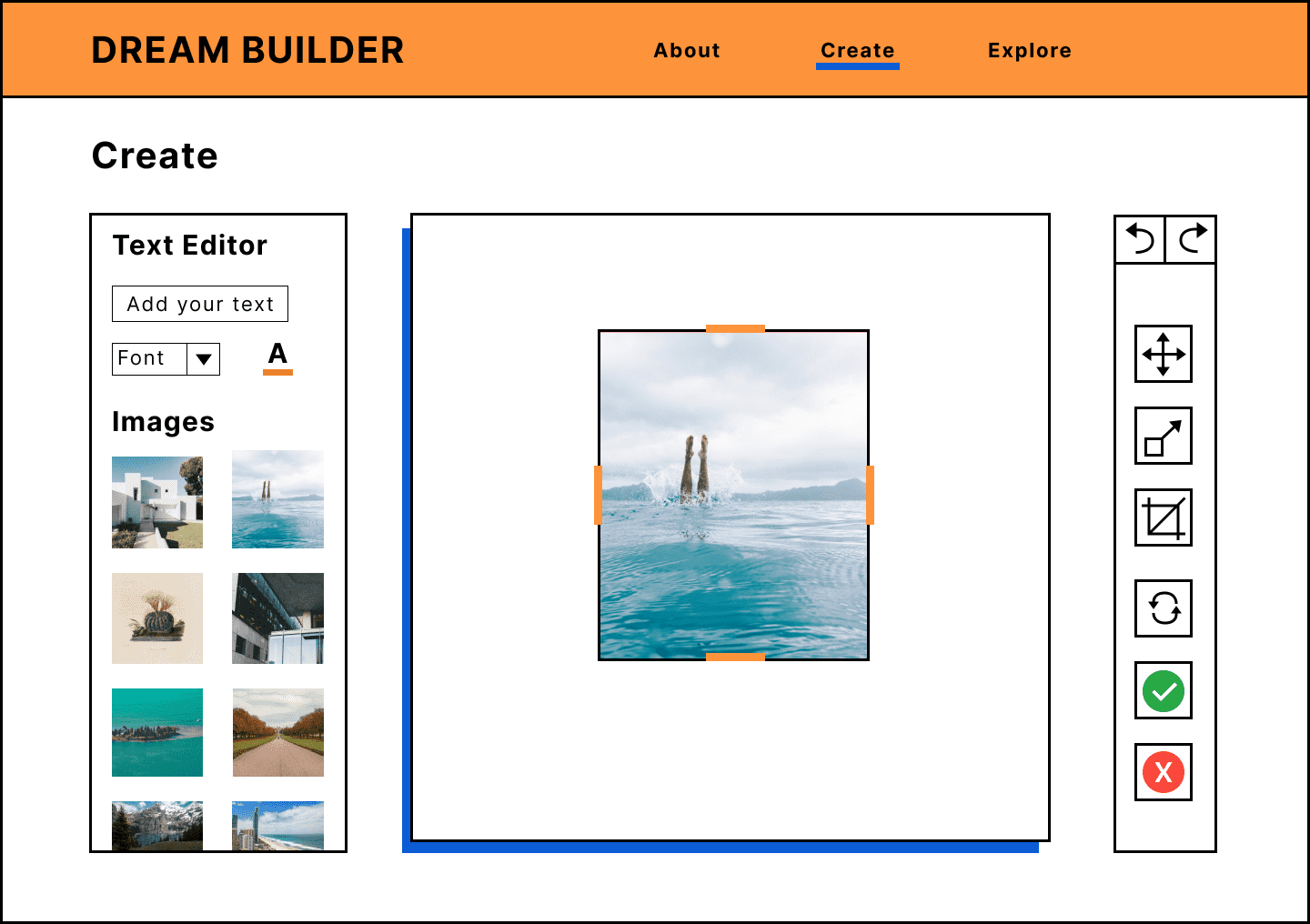
When making a physical dream board or any collage, usually you cut out shapes or images and paste them to your canvas, layering up to create a collage. We want to recreate this experience. In the middle of the page is your canvas, on the left is your image bank/media library. On the right is your editing tool box. You can scroll through the image bank, drag an image on to the canvas and choose to crop, scale and position the image (on top or below). There is also a button to add text to the page, type in the affirmation, quote, word or letters your wish and resize, change the font or colour.
While this sounds simple, behind the user interface there is a lot happening at once to make this possible. Most of us have used a simple image editor before, maybe Adobe or Inkscape, or in a web browser or on our phones.
But what exactly is happening when we resize an image or crop a photo to fit into a square? In most cases, we use our mouse pointer or finger to drag the corners of the image to resize it. For cropping, a rectangular outline is place over the image, again you drag the edges/corners where you want to crop. Moving the image also requires dragging and dropping in place. So while the outcome of each three tools are different, the user process is the same.
Mobile Friendly
We design with a mobile-first approach to make sure websites and apps are optimal for all devices. The layout for the homepage and image collection is relatively simple to make responsive. The canvas page is more difficult as we want the majority of the screen to be taken up by the canvas, so the user has plenty of space to create.
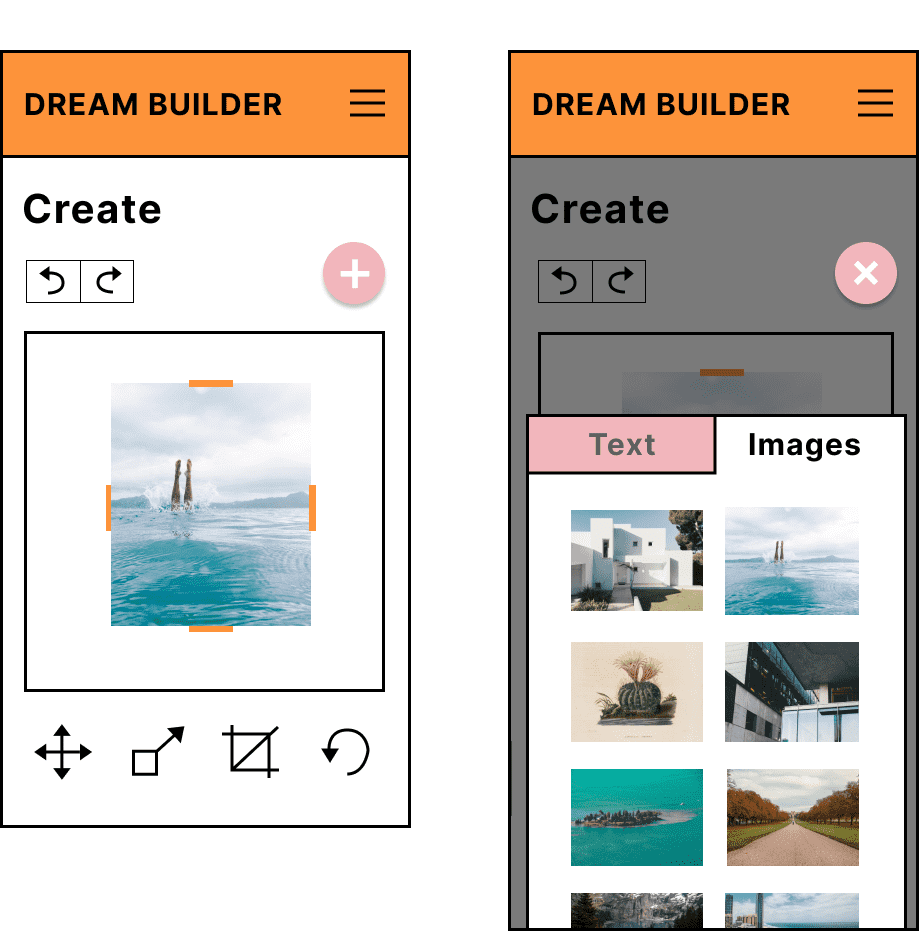
On desktop, there is plenty of space on either side of a square canvas to fit the editing tools (square dimensions also fits better on all devices). On a mobile or tablet device, the viewport is vertical so it makes sense to put the tool bar above or below the canvas. I put the toolbar at the bottom of the page so it's easier for thumbs to reach. The image library can be accessed by tapping an icon (circle with plus) rather than take up a lot of screen space. The user can scroll through and select images by dragging on to the canvas/double tapping.
The editing tools work in the same way as on desktop, except using a finger to tap rather than mouse-click. It's important to think about differences such as no right-click - this may be activated by holding down with a finger instead. For crop, a tick or cross button appearing will allow the user to confirm the new crop position.
More from this series
This was the first post of the Dream Builder Series.
The next post is Setting up Shaders with React Three Fiber.
Get in touch
If you have any questions or ideas, please email me at magda@bearjam.dev.